
Plan for Inclusion and Accessibility
Based on your landscape analysis, you should have a good idea of the different community group perspectives that need to be represented in your workgroup. Next you must consider how to create a space where everyone can participate. Planning for inclusion means intentionally creating welcoming meetings where information can be easily received, understood, and used by everyone, regardless of background, language or ability. While accessibility is often associated with supporting people with disabilities, it makes environments, services, and information more usable for everyone.
Learn About Disability Inclusion
Disability is part of every community and identity group. This means that whenever you engage with a group of people, it’s likely that some have disabilities, whether they choose to share that information.
Disability can include physical, mental, or health-related conditions that affect how a person moves through and interacts with the world. In fact, about one in four adults in the United States has a disability. Keeping this in mind helps you plan engagement in ways that welcome and include everyone from the start.
Ableism
Ableism is discrimination against people with disabilities. It happens when society treats disability as an individual problem or failing instead of recognizing that many barriers come from the environment. Creating accessible spaces is everyone’s responsibility.
Ableism leads many people, especially those with hidden disabilities, to hide their disability or avoid asking for support.
- Asking people what is wrong with them is intrusive and treats disability as a defect. You can acknowledge someone’s disability respectfully, but don’t ask personal questions out of curiosity. Disability is just one part of who a person is.
- Calling someone an inspiration might be well-intended, but it often feels patronizing. Disability is a normal part of life, not something that makes everyday activities heroic.
- Using euphemisms like “differently abled” or “special needs” implies that disability is a bad word. Use the language a person uses about themselves. Some people prefer “person with a disability,” while others prefer “disabled person.”
- Telling someone you don’t see them as disabled minimizes a person’s identity. You can value someone’s strengths without denying their disability.
- Talking to an adult with a disability like they are a child is insulting. Treat adults as adults. Speak directly to them, not to the person with them or their interpreter. Assume competence.
- Helping without asking is not helpful. Always ask before giving help and respect the answer. Don’t touch mobility devices or service animals without permission.
- Avoid speaking for someone with a disability. Be patient and let people communicate at their own pace. If you don’t understand, clarify rather than pretending.
Disability Resources & Links
- Disability Sensitivity Training Video
- Crip Camp on Netflix — A 2020 documentary telling the story of how relationships formed at a summer camp for teens with disabilities led to a powerful movement for disability rights.
- Stella Young’s TED Talk: "I'm not your inspiration, thank you very much"
- World Institute on Disability General Accessibility and Etiquette Guides
- Communicating With and About People with Disabilities (wa.gov) (opens in a new tab)
Apply Universal Design Principles
The Principles of Universal Design were developed to help create products and spaces that are usable by everyone, regardless of abilities, preferences, or circumstances. Considering the 7 principles below helps ensure that meetings are inclusive and accessible for all.
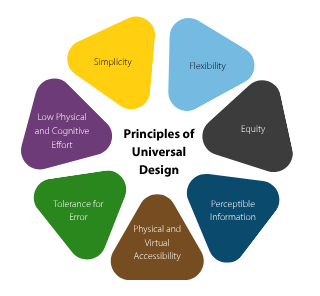
1. Flexibility
- Allow multiple ways to contribute (e.g., audio only, video, or through chat).
- Record meetings for participants who cannot attend live.
2. Equity
- Ensure all participants have equal access to join and participate.
- Provide accommodations proactively whenever possible (e.g., accessible documents, captioning).
3. Perceptible Information
- Provide materials in accessible formats.
- Enable captions and ensure audio quality is clear.
- Use plain language and avoid jargon.
4. Physical and Virtual Accessibility
- Ensure that links to join meetings are easy to locate and use.
- Provide dial-in options for participants with limited internet access.
- Test accessibility features (e.g., color contrast, captions) in advance.
- Ensure all participants can access shared content (e.g., screen shares, documents, links).
- Confirm the platform supports assistive technologies (e.g., screen readers, keyboard navigation).
5. Tolerance for Error
- Foster a supportive environment where participants feel comfortable seeking clarification.
- Encourage questions and respond without judgment.
- Schedule opportunities to provide additional support proactively, so participants don’t have to ask for help.
6. Low Physical and Cognitive Effort
- Schedule breaks when meetings are scheduled for more than 60 minutes.
- Avoid requiring participants to multitask unnecessarily.
7. Simplicity
- Use clear, concise language in meeting invites and materials.
- Share an agenda in advance to set clear expectations.
- Eliminate unnecessary complexity whenever possible.
- Avoid use of acronyms.
Learn more about the Principles of Universal Design: Accessibility Is Not What You Think (opens in a new tab).
Understand Accessibility Requirements
Accessibility for all is not just a suggested best practice. State and federal laws require state agencies to make sure all technology, digital tools, and meeting materials are accessible to people with disabilities. You must ensure that:
- Meeting platforms are accessible and configured correctly.
- All documents, slides, forms, and videos follow accessibility standards.
- Required accommodations (captions, interpreters, alternative formats, etc.) are provided.
- Programs or apps are accessible and do not exclude people with disabilities.
Choose an Accessible Platform
Microsoft Teams and Zoom are the two most used video conferencing tools. Both platforms have built-in accessibility features, but Zoom is generally preferred for ease of use and accessibility.
- Learn about the accessibility features of the meeting platform you will be using, including how to turn on auto captioning and how to pin sign language interpreters; allow participants to multi-pin.
- Test accessibility features in advance.
- Provide a phone-in option for people who cannot join by computer.
- Decide if the meeting will be recorded.
- Determine if you will provide autogenerated captions or CART transcription.
- Let participants know how to use accessibility features.
Host Accessible Face-to-Face Meetings
Consider the following before booking or confirming a location to ensure it can support accessibility for all attendees, including those participating virtually.
Location & Transportation
- The venue is located near accessible public transportation routes.
- Accessible parking spaces are available close to the main entrance.
- Drop-off zones and curb cuts are present and unobstructed.
- Pathways from parking or transit stops to the venue entrance are smooth, well-lit, and barrier-free.
Mobility & Physical Access
- Entrances, restrooms, and meeting rooms are wheelchair-accessible (36+ inch doorways and pathways).
- Elevators are available if the venue has multiple floors.
- There is adequate circulation space to prevent crowding.
- Meeting rooms are large enough for wheelchair users to move comfortably.
Visibility
- Lighting is bright, even, and adjustable to reduce glare or shadows.
- Signage is clear, high-contrast, and easy to read.
- Braille signage is included if needed.
Acoustics
- The space supports clear audio with minimal echo or background noise.
- Microphones are available for speakers and participants.
- Hearing loop or FM assistive listening system is available or can be rented.
- Audio systems can connect to virtual meeting platforms for hybrid events.
Technology & Connectivity
- Reliable Wi-Fi or wired internet is available to support hybrid participation.
- Sufficient electrical outlets and charging stations are available.
- Space allows for cameras, microphones, and captioning technology without creating obstacles.
Refreshments & Agenda Planning
- If the meeting is longer than a couple of hours, consider providing refreshments so people don’t get hungry or thirsty.
- Whether or not you can provide food for attendees, you must communicate whether there will be refreshments or not either way so people can plan accordingly around their own needs.
- If you are providing any refreshments, inform people what they will be in advance so attendees can plan for allergies or preferences accordingly.
- Have breaks planned and clearly outlined on the agenda so attendees know when they can get up to use the bathroom, stretch, or take a mental health break.
While there are benefits to meeting in person, some people may be unable to attend for a variety of reasons. Offering the ability to participate remotely can help ensure everyone can participate. Hybrid meetings can increase access and flexibility, but they also require extra planning to make sure everyone can fully participate, no matter how they join.
What barriers make it harder for people to participate?
“Some of the biggest barriers we heard from the community were: lack of childcare during sessions, lack of transportation to attend sessions, language barriers when engaging with the topic at hand, and stigma around discussing certain topics such as behavioral health. If you want to gather feedback from the community, consider potential barriers and offer multiple modalities to better capture feedback from the communities you serve.”
— Natalia Chacon, Idabelle Fosse, and Marjan Didra (King County community engagement staff)
Host Accessible Hybrid and/or Virtual Meetings
Successful hybrid meetings ensure remote participants can see, hear, and interact at the same level as in-person participants.
- Ensure CART and interpreters can access both the in-person and the virtual environments. Interpreters may need to be onsite or “pinned” on Zoom/Teams depending on participants’ needs.
- Captions must be displayed for both remote and in-person participants, projecting captions on a screen in the room.
- Use high-quality microphones covering the entire room (not just at the front).
- Test audio pickup for soft speakers, accents, and participants who speak from different seating positions.
- Ensure documents, slides, and videos are accessible to all before the meeting.
- Avoid activities that exclude remote participants.
- Regularly pause to check if remote participants have questions.
- Assign a remote advocate who is attending in-person to watch the virtual room, monitor chat, and raise hands/questions on behalf of remote participants.
Deliver Accessible Presentations
No matter the meeting format, presenters should be mindful of accessibility when speaking to an audience. The following guidelines foster inclusion and improve the clarity and effectiveness of the message being shared.
- Turn on your camera or face the audience to assist people who are lip reading.
- Keep movement to a minimum while speaking.
- Make sure you are well lit and avoid distracting backgrounds.
- Always use a microphone, even if you believe your voice carries.
- Be mindful of background noise. Mute notifications and close other applications.
- Speak clearly, at a normal pace, and directly into the microphone.
- Pause after lengthy or complex points, especially when interpreters or captioners are present.
- Adjust your pace based on audience cues or feedback.
- Read aloud all text that appears on slides and in the chat, remembering to describe visual content.
- Verbally describe images or visual content briefly.
- Repeat any audience questions or comments before responding (especially if there’s no audience microphone).
Create Accessible Documents
Document accessibility means designing content that everyone can access and understand. No matter what program you are using to create content, whether it be web-content, a word document, a PowerPoint, a PDF, or any other software, the following principles apply. All state employees should understand how to create accessible documents. Detailed tutorials and trainings are available online from a variety of sources, or you may ask your IT personnel for help. Several are linked at the end of this section. The following principles of accessibility should be considered no matter what type of document is being created.
Color and Contrast
Color should never be the only way information is communicated. If using colors to convey meaning, also use formatting options such as underlining or making text bold to ensure people who are blind, or color blind can understand your content.
Good contrast between text and background is also essential. Low contrast (like light gray text on white) can make reading difficult or impossible for many users. Proper contrast improves readability for everyone.
Fonts
- Select easy-to-read sans serif fonts such as Calibri, Arial, or Aptos.
- For presentations, use at least 28-point font to ensure readability.
Links
Link names should describe their destination or purpose rather than using generic words like "click here" or raw URLs:
- Learn more about document accessibility
- The Social Security Administration provides a detailed accessibility checklist for Microsoft Word
Alt Text
All images should include alt text answering: “Why is this image here?”
- Focus on what is important to understand the image in context. Do not describe everything you see.
- Avoid starting with "image of" or "picture of" (screen readers announce images automatically).
- Keep it brief and include any embedded text.
- If an image is purely decorative, mark it as decorative.
- Don't rely solely on AI descriptions; they are often inaccurate and lack context.

Example Alt Text: “A Washington State ferry boat on blue water with forested land and a snow-capped mountain in the background.”
Structure
Accessible documents are properly structured. By using headings properly, you make it easier for readers to find and understand information in your document.
Structure means:
- Using real headings (not just changing how the text looks).
- Organizing content in a logical order.
- Using built in tools to create lists.
Headings must follow logical order. Do not skip levels.
In Microsoft Word headings are created using the styles option on the home tab.
Tables
When used properly, tables are a great way of organizing information. Tables should be used to present data, not to make a page look a certain way. Clear, simple tables benefit everyone, not just people with disabilities.
- Include headers that describe the information in each column.
- Keep it simple. Avoid merged or split cells.
- If your table is complex, break it into several smaller tables.
- Include a brief description or title that explains what the table shows.
- Include a description of the information in the table using alt text.
- Use N/A to avoid blank cells, which can be confusing for screen readers.
Accessibility Checkers
Many programs include built-in accessibility checkers that help identify common accessibility issues. Such tools are available in programs such as Microsoft Word, PowerPoint, Excel, and Adobe Acrobat.
These tools will identify common accessibility errors and help you fix them, but they are not a substitute for following proper accessibility practices. Such tools can tell you, for example, if an image has an alt text description but not if the description is accurate. Because of this, accessibility checkers should be just one part of your process. The best way to create accessible documents is to follow accessibility guidelines from the beginning and then run the checker as the final step before sharing or publishing your file.
Accessible Document Links
What helps you feel that your voice and experience are valued?
“Two big keys: Does the person with the disability feel like their voice is respected as much as everyone else? Do they feel like their contributions made a difference in the final product or action?”
— Shawn Latham (Disability advocate)
Embrace Trauma-Informed Practices
A trauma-informed approach starts with recognizing that many people have experienced trauma, and that these experiences can influence how they feel, act, and engage in workgroup discussions. Trauma-informed engagement benefits everyone, whether they have lived through trauma, because it creates spaces that are safe, predictable, and respectful. When people know what to expect and feel supported, they are more comfortable sharing ideas, asking questions, and working together.
Using trauma-informed principles in a workgroup means building an environment where people feel safe, valued, and able to participate fully. This begins with clear communication, shared expectations, and practices that help reduce stress for everyone. This also includes giving a simple trigger warning or heads-up when a conversation will involve difficult or sensitive topics, so people can choose how they want to take part. To put these principles into practice, consider the following:
- Create safety: Explain what will happen in the meeting, how people can participate, and what the goals are. Give advance notice when discussing topics that may be emotionally difficult. Check in with the group and make sure the space feels welcoming.
- Build trust: Be honest, follow through on commitments, and share information openly. Let people know what to expect, especially before making big changes.
- Encourage peer support: Give people chances to connect, share ideas, and support one another. Normalize asking questions or asking for help.
- Work together: Invite input from all members, share decision-making when possible, and acknowledge everyone’s contributions.
- Support voice and choice: Provide multiple ways to participate. Let people contribute by speaking, using the chat, or sharing ideas between meetings by email. Encourage people to speak from their own experiences.
- Honor culture and identity: Recognize that people come from different backgrounds and may have had different experiences with trauma, power, or exclusion. Make space for those perspectives.
- Because trauma can affect anyone, these practices help the whole group stay focused, calm, and connected.
- This is only a brief introduction. Effective trauma-informed engagement takes ongoing learning and practice. Agencies should have staff trained in trauma-informed approaches who can help model these practices, answer questions, and support the group as needed. Using these principles can build a stronger, more inclusive workgroup where everyone can participate, contribute, and be heard.
Ensure Language and Communication Access
Communities include many languages, cultures, and ways of communicating. To ensure workgroups reflect the communities they serve, it is important to engage people in the languages they prefer.
Providing language access builds trust, improves understanding, and allows people to share their knowledge and perspectives. When organizations make space for multiple languages and communication styles, they benefit from a broader range of experiences and ideas.
Language and communication access includes support for people who:
- Primarily speak a language other than English
- Have communication-related disabilities, such as hearing loss or language processing challenges
- Are unfamiliar with government terminology, acronyms, or specialized vocabulary
Language access should be planned and built into an organization’s communication and engagement practices. It should not be added at the last minute.
Planning for Multilingual Participation
Supporting multiple languages requires early planning. When organizing meetings, outreach, or application processes:
- Allow time to connect with community groups and identify language needs.
- Translate key materials such as flyers, agendas, applications, and instructions.
- Build time into your schedule for translation review and revisions.
- Provide application materials in the commonly spoken languages identified during your outreach or landscape analysis.
- Offer a clear way for people to request help completing forms in their preferred language.
- Share meeting materials with interpreters in advance so they can prepare for specialized vocabulary and topics.
Translation and Interpretation
The two main types of language access services are:
- Interpretation: The oral process of converting a spoken message from one language to another.
- Translation: The written process of converting documents from one language to another.
The Department of Enterprise Services (DES) manages Statewide Language Access Contracts, so all agencies have the tools they need to provide interpretation and translation services. Agencies are required to use the statewide contract to procure these services. If the services needed are not available to serve your community, some exceptions apply to the mandatory use of the statewide contract.
Many agencies already have a language access policy or strategic plan. These resources can help guide decisions about which documents to translate and which languages to prioritize. If your agency does not have a language access policy, you may want to consult with the Office of Equity’s Access & Accessibility team to request support in developing one.
Types of Interpretation
| Method | How It Works | Best Used For |
|---|---|---|
| Consecutive | Speaker pauses regularly and interpreter translates what was said. | Meetings, group discussions, and short-turn conversations. |
| Simultaneous | Interpretation occurs live while the speaker is talking (requires headsets or virtual audio channels). | Speeches, formal presentations, and large meetings. |
Transcription Options: CART vs. AI Captioning
| Feature | CART Transcription | AI Auto-Captioning |
|---|---|---|
| Provider | Trained human captioner (via state contract) | Automated speech recognition algorithms |
| Accuracy | High accuracy (captures every word) | Variable; lower with accents or background noise |
| When Required | Formal accommodation requests, public meetings, complex audio. | Informal sessions when no formal accommodation is requested. |
American Sign Language (ASL) Interpretation
American Sign Language interpretation is coordinated through the Office of the Deaf and Hard of Hearing (ODHH) in partnership with the Department of Enterprise Services.
ODHH maintains a list of approved ASL interpreting agencies and independent interpreters. These interpreters are certified and follow the professional standards of the National Association of the Deaf and the Registry of Interpreters for the Deaf.
Keep in mind:
- Payment for interpreter services is handled by the requesting agency or department.
- Follow your agency’s internal process for requesting and paying for interpreters.
- For virtual meetings, hosts should enable interpretation settings and assign interpreters when the meeting begins.
- Interpreter requests, especially for in-person events, may require several weeks' notice. Submit requests as early as possible.
State employees can request interpreters through the ODHH system by:
- Creating an account and waiting for approval.
- Confirming that the organization has a Contract Usage Agreement (CUA).
- Completing the online Sign Language Interpreter Request Form.
- Monitoring communication from the ODHH scheduling system.
Use Plain Language
Plain language is writing that is clear, direct, and easy to understand. It helps people quickly find, understand, and use information. In Washington State government, plain language is required under Executive Order 23-02 (opens in a new tab).
Plain language improves access for:
- People with disabilities
- English learners
- People who are unfamiliar with government terminology
This is especially important when documents will be translated. Clear sentence structure reduces confusion, improves translation accuracy, and can reduce translation costs.
Key plain language practices include:
- Writing short sentences
- Using simple words and avoiding jargon or acronyms
- Explaining or limiting acronyms
- Using active voice so readers know who is responsible for actions
- Focusing on clear, concrete information
Language & Communication Access Links
- DES Statewide Language Access Contracts (opens in a new tab)
- Hearing Loss Association of WA Guide to Captioning & CART (opens in a new tab)
- Request an ASL Interpreter via ODHH (opens in a new tab)
- ASL Interpretation Setup Guides for Teams (opens in a new tab) and Zoom (opens in a new tab)
- Washington Plain Language Guidelines (opens in a new tab)
- Governor's Plain Language Resources (opens in a new tab)
- EO 23-02 Guidelines (opens in a new tab)
- ADA Title II Regulations (opens in a new tab)
- WA Tech’s Digital Accessibility Policy (opens in a new tab)
- Executive Order 24-05 (Improving Employment Outcomes) (opens in a new tab)